
So you've decided your website needs an AI chatbot. Good call.
Now comes the part nobody talks about. How do you actually set one up so it answers like someone who knows your business, instead of a confused robot that says "Sorry, I didn't get that" every third message?
That's what this guide is about. I'll walk you through how I'd add an AI chatbot to a website, from deciding what it should do to training it, installing it, testing it and improving it week after week. If you're still choosing software, we've compared the options in our list of the 9 best chatbots for your website.
This one is all about the setup.
Why the Setup Matters More Than the Software
Here's something I've noticed again and again.
Two businesses can buy the exact same chatbot. One gets a bot that sells, supports and collects leads around the clock. The other gets a bot that visitors close within five seconds.
The difference is almost never the software. It's what the bot was taught, how it was told to behave and whether anyone ever checked its conversations.
A chatbot is a bit like a new hire. Give it a proper onboarding and it'll do great work. Throw it in on day one with no training and, well, you know how that goes.
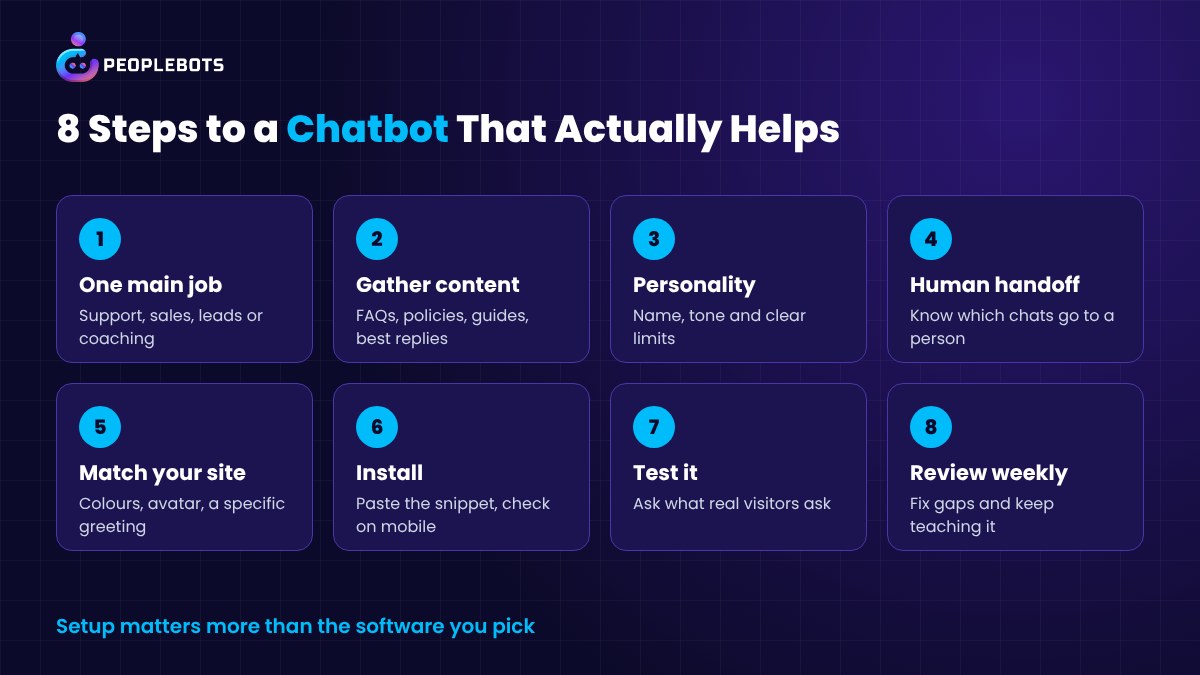
Step 1. Give Your Chatbot One Main Job
What do you want this bot to do?
"Everything" is the wrong answer. Start with one main job and add more later.
- Support. Answer the questions your inbox sees every day, like shipping, refunds, logins and how-tos.
- Sales. Handle pre-sales questions, deal with objections and point people to the right offer.
- Lead capture. Start conversations and collect email addresses from visitors who would otherwise leave silently.
- Coaching or training. Answer questions about your course, book or method for students and clients.
Pick the one that hurts most right now. If your inbox is drowning, start with support. If traffic is good but sales are slow, start with sales.
Step 2. Gather Everything It Needs to Know
An AI chatbot can only be as good as the material you give it.
Before you touch any settings, open a folder and collect the following.
- Your FAQ page, plus the questions people ask that never made it onto the FAQ page.
- Shipping, refund, cancellation and privacy policies.
- Product or service pages, with prices and what's included.
- Manuals, guides, ebooks and onboarding documents.
- Any videos where you explain your product well.
- Ten or twenty of your best replies from past support emails.
That last one is gold. Your best human replies show the bot the tone and level of detail your customers already like.
One tip. If two documents disagree, fix that first. The bot can't guess which version of your refund policy is the real one.
Step 3. Write Its Personality and Its Boundaries
Now tell the bot who it is.
A few plain sentences are enough. Something like "You're Maya, a friendly support assistant for our online store. Keep answers short and warm. Never promise delivery dates. If someone is upset or asks for a refund over $100, offer to connect them with a person."
Notice what that does. It sets a name, a tone and a length. And it draws clear lines around what the bot shouldn't do.
Boundaries matter as much as personality. Write down the topics the bot should stay away from, such as legal advice, medical advice or anything you can't stand behind.
Step 4. Decide When a Human Takes Over
Even a great bot shouldn't handle everything.
Decide in advance which conversations go to a person. Angry customers. Big orders. Billing disputes. Anything unusual.
Then make it easy. Let visitors ask for a human, and make sure someone on your team actually gets notified when they do. A handoff that leads nowhere is worse than no handoff at all.
Step 5. Make It Look Like Part of Your Site
A chat widget that clashes with your design feels like an ad. People ignore it.
Match the colours to your brand. Use a friendly avatar. Write a welcome message that sounds like you, and make it specific. "Got a question about sizing or delivery? Ask me" beats "How can I help you today?" every time.
Also think about where the bot appears. A small pop-up in the corner works for most sites. A coaching or course bot might deserve its own page.
Step 6. Install It on Your Website
This is the part people worry about. It's usually the easiest step.
Most modern chatbots give you a short snippet of JavaScript code. You paste it into your site the same way you'd add Google Analytics or a Facebook Pixel.
- WordPress. Use a header and footer plugin, or your theme's custom code area, and paste the snippet before the closing body tag.
- Shopify. Add it to your theme's code, usually in the main theme layout file.
- Website builders. Look for a "custom code" or "embed" setting in your site settings.
Install it on one page first if you're nervous. Check it on desktop and on your phone, then roll it out everywhere.
Step 7. Test It Like a Real Customer
Don't skip this. Please.
Open your site in a private window and try to break your own bot. Ask it the things real visitors ask, and a few things they shouldn't.
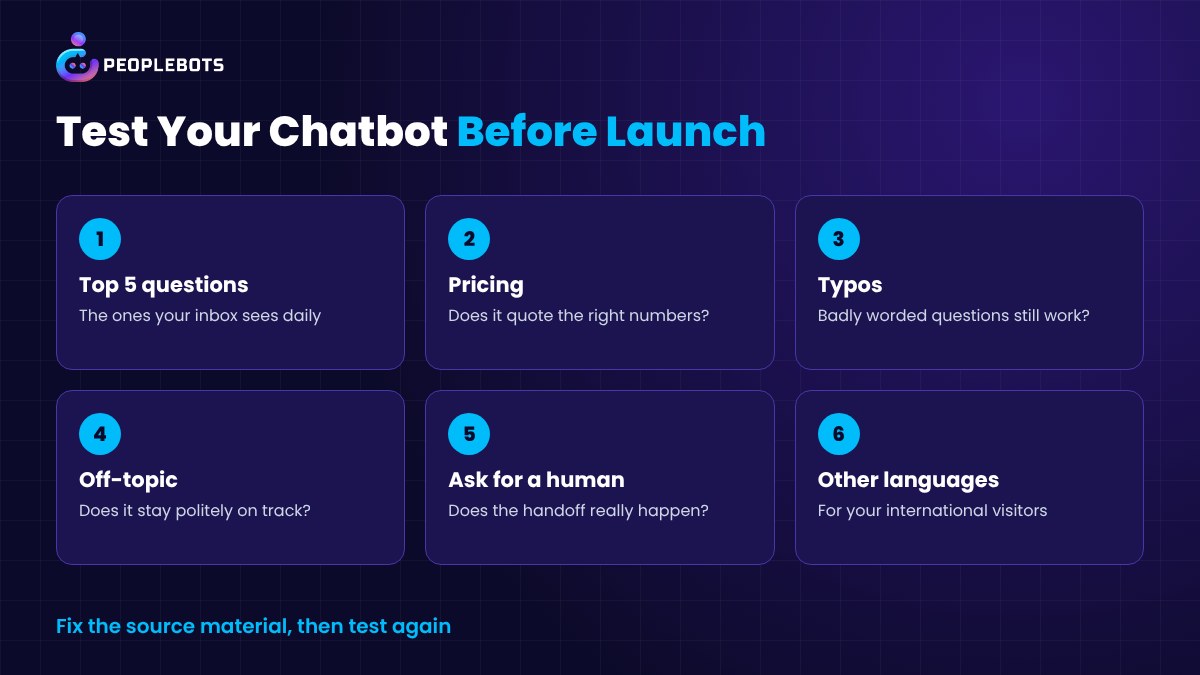
- Your five most common support questions.
- A pricing question, to check it quotes the right numbers.
- A question that's worded badly or full of typos.
- Something completely off-topic.
- A request to speak to a person.
- A question in another language, if you have international visitors.
Did it get anything wrong? Good. Better you find it than your customers. Fix the source material, adjust the instructions and test again.
Step 8. Review Chats and Keep Teaching It
Launch day isn't the finish line. It's the start.
Set a weekly reminder to read through the bot's conversations. You're looking for three things.
- Answers that were wrong or vague.
- Questions it couldn't answer at all.
- Conversations that should have gone to a human sooner.
Each of those is a lesson. Add the missing information, correct the bad answer and the bot gets a little smarter every week.
After a month or two you'll notice something nice. The weekly review gets shorter.
Common Setup Mistakes to Avoid
Feeding it your whole website and calling it done. Web pages are written to sell, not to answer questions. Add your FAQs and real support replies too.
Hiding the human option. People get frustrated fast when they feel trapped with a bot.
A generic greeting. If the first message sounds like every other chatbot, people treat it like every other chatbot.
Never collecting leads. If someone spends five minutes chatting with your bot, it's fair to ask for their email so you can follow up.
Set it and forget it. Your prices, products and policies change. Your bot needs to know when they do.
How PeopleBots Makes This Setup Easier
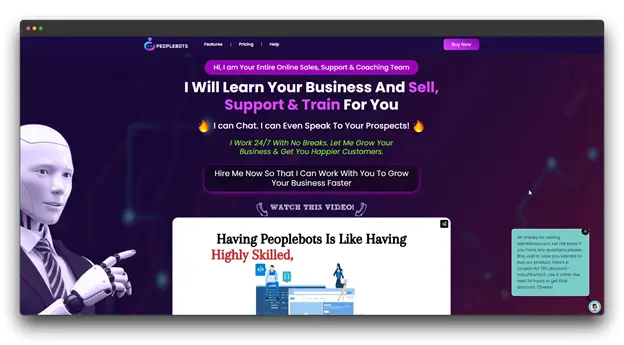
We built PeopleBots around exactly these steps, so the setup feels like onboarding a new team member rather than programming software.
You teach it with the material you already have. PDFs, text documents, web pages and even YouTube videos. You describe its personality in plain words, or start from one of the ready-made bots and adjust it.
Visitors can type or talk to it. It chats in hundreds of languages and voice-chats in dozens. A person on your team can take over any conversation and hand it back to the AI.
It can start the conversation, promote your offers and coupons, and ask for an email address. Leads export as a CSV file or go straight to your CRM.
For the review step, every chat is saved with a short summary in the chat list, so you can spot the ones that need attention. You can feed good answers back in so it handles the same question better next time.
Installation is a small pixel code you paste into your site, and you don't need your own OpenAI API key. You can also match its colours and design to your site and run separate bots on different websites.
PeopleBots costs $17 a month or $67 a year.
Final Thoughts
Adding an AI chatbot to your website isn't hard. Adding a good one takes a little care.
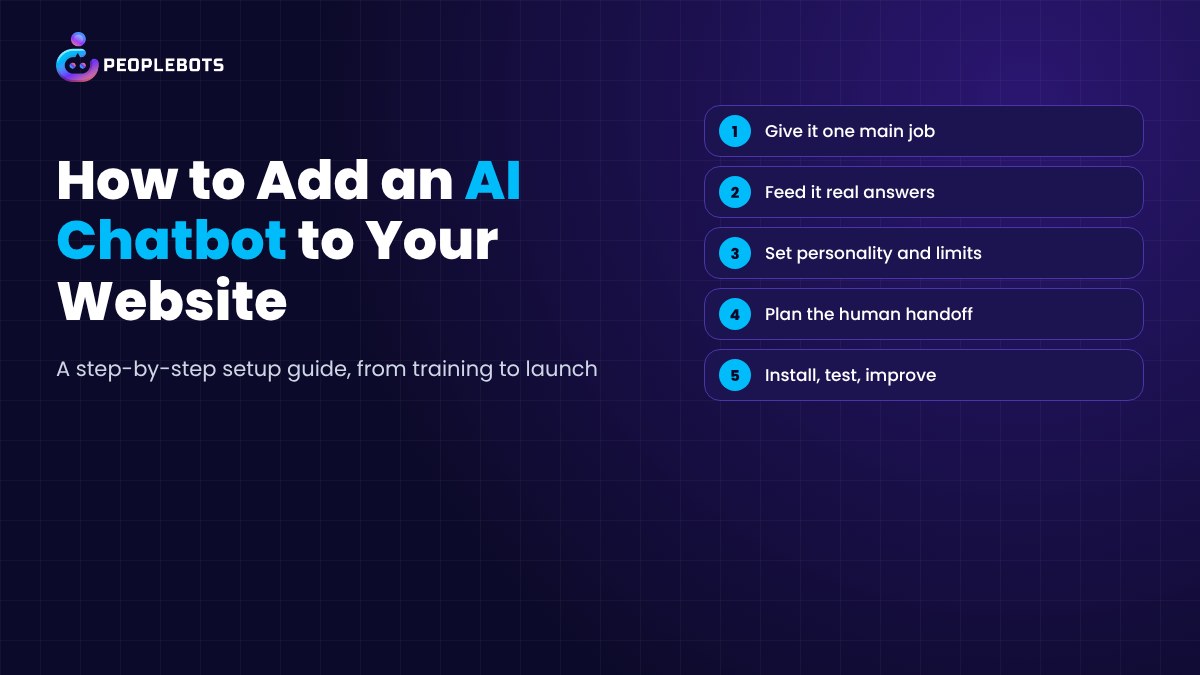
Give it one job. Feed it real answers. Write its personality and its limits. Make the human handoff easy. Test it like a customer. Then read its chats every week and keep teaching it.
Do that and your bot becomes the team member who never sleeps.
And if you haven't picked your chatbot yet, start with our roundup of the 9 best chatbots for your website, then come back here to set it up.
FAQs About Setting Up a Website Chatbot
How long does it take to add an AI chatbot to a website?
Installing the code usually takes a few minutes. Gathering your content and testing properly takes longer, often an afternoon for a small business. That time is well spent.
Do I need to know how to code?
No. Most chatbots install with a copy-and-paste snippet, and training is done by uploading documents and writing instructions in plain language.
What should I train my chatbot on first?
Start with your FAQs, your policies and your best past support replies. Those cover the questions visitors ask most, in the tone your customers already like.
How often should I update my chatbot?
Review its chats weekly for the first couple of months, then at least monthly. Update it straight away whenever your prices, products or policies change.